
Tutorial completion
The app has two short onboarding tutorials for teachers, Add Class and Test Assessment Round. Tutorial completion shows who has finished them, so you know which teachers are ready and which ones need a nudge.
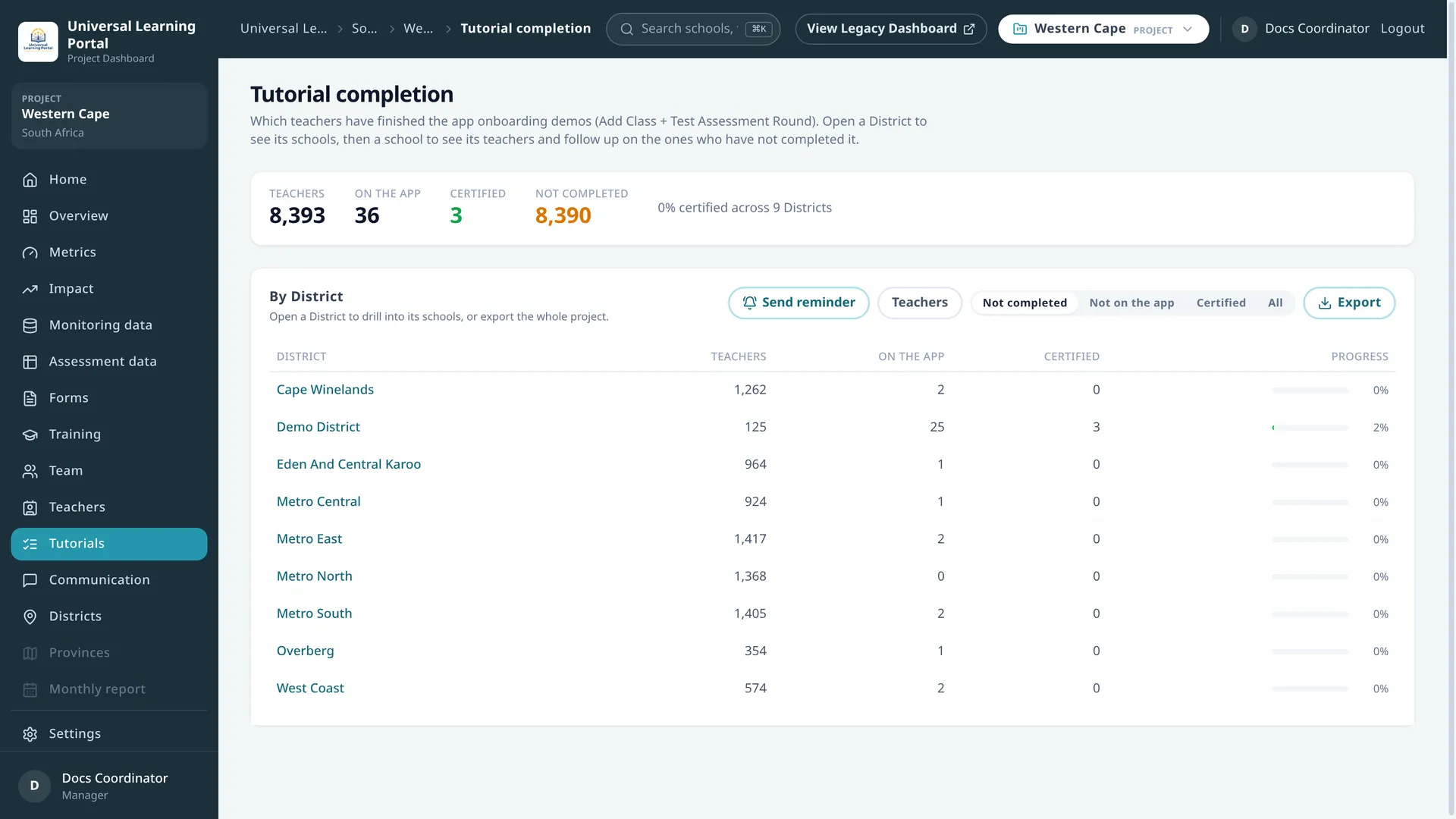
Where to find it
Section titled “Where to find it”- Tutorials, in the sidebar, opens it, and every role can use it.
- On the province’s Home page, each district of the By district table has a Tutorials link.
- On a district’s page, the Tutorial completion link above the list of schools goes straight to that district.
A district official lands on their own district and cannot open the others.
Three levels
Section titled “Three levels”The page follows the real hierarchy instead of one long list:
- The project, which is the province, lists its districts.
- A district lists its schools. Only schools that have at least one teacher appear.
- A school lists its teachers.
Each level opens with the same figures:
| Figure | What it counts |
|---|---|
| Teachers | Every teacher of that province, district or school |
| On the app | Teachers who have signed in to the app and synced at least once |
| Certified | Teachers who have finished both tutorials |
| Not completed | The rest |
On the app separates the teachers who have not started from the ones who have not finished.
Next to them is the share that is certified. On the project and district pages, each row of the table shows it again as a progress bar.
A teacher becomes certified on the first sync after finishing both tutorials, and stays certified from then on.
The teachers of a school
Section titled “The teachers of a school”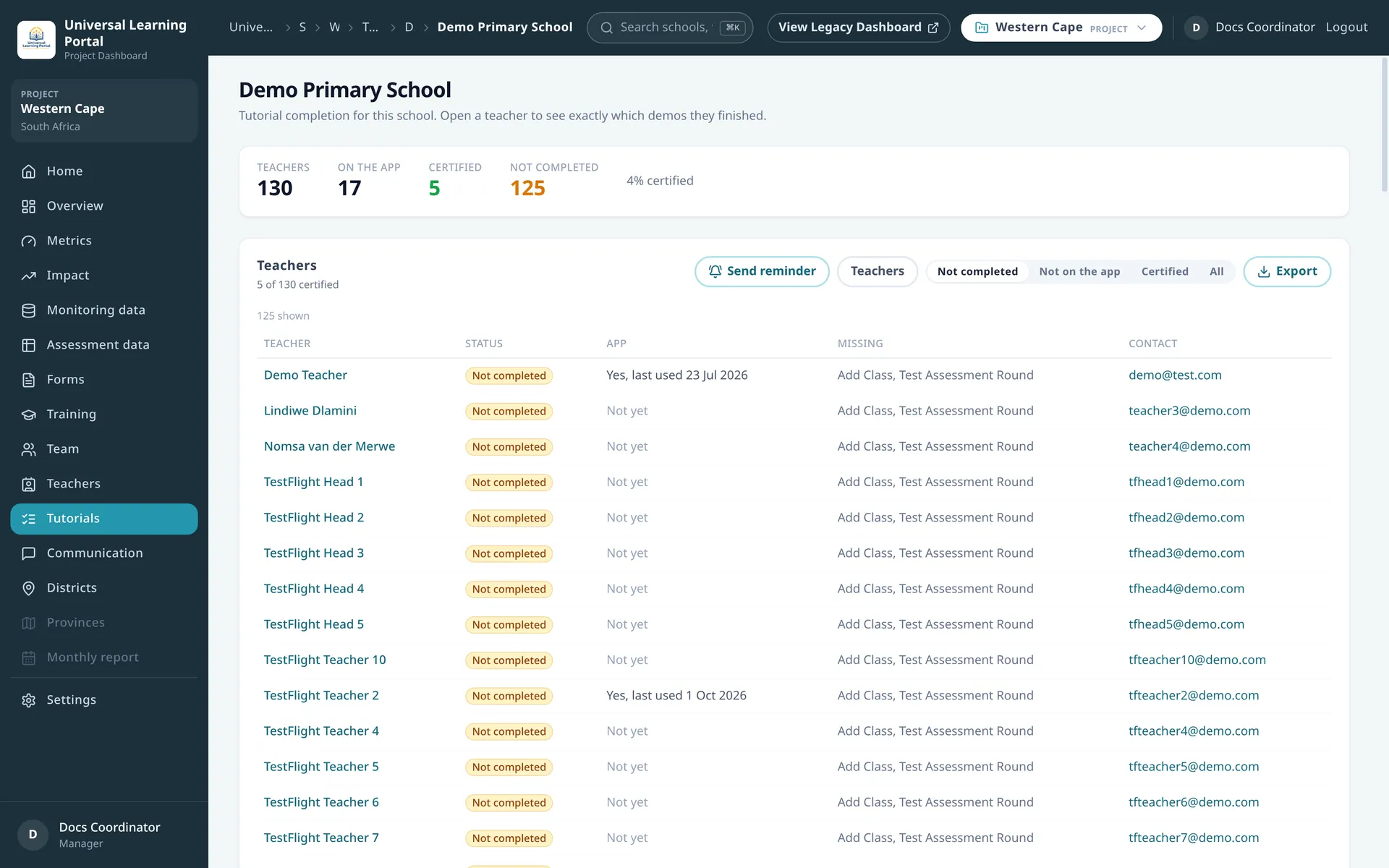
| Column | What it shows |
|---|---|
| Teacher | The name, which opens the Teacher page, where the Tutorials card shows each tutorial one by one |
| Status | Certified with the date, or Not completed |
| App | Whether they have used the app, and the date they last did |
| Missing | The tutorials still to do |
| Contact | Phone number and email address |
The phone number and the email address are links. On a phone, tapping the number starts a call, which makes it quick to ring the teachers who have not finished.
On a phone the table becomes a list, one entry per teacher with the same details, so nothing is cut off at the side.
Filtering and exporting
Section titled “Filtering and exporting”The buttons above the table choose which teachers you are working with:
- Not completed, the one selected when the page opens
- Not on the app
- Certified
- All
On a school they filter the list. On a project or a district the table always shows every row, and the choice decides who goes into the export.
Export downloads a CSV file, which opens in any spreadsheet program, with one row per teacher: name, school, district, status, the tutorials missing, phone and email. From the project page it covers the whole project, from a district that district, and from a school that school.
The export has one more column, with the date each teacher last used the app.
Teachers, next to those buttons, opens the Teachers list for the same project, district or school, already filtered to the teachers who have not finished the tutorials. That is the place to send them their invitation.
District officials do not have this button, because the Teachers list covers the whole province.
Sending a reminder
Section titled “Sending a reminder”Send reminder emails the teachers who have not finished the tutorials. It is available to senior managers and administrators, and it works on whatever the page covers: the project, one district or one school.
Before anything is sent, a summary shows how many teachers will receive the email and who is left out:
- teachers without an email address
- teachers who have already completed the tutorials
- teachers who received a reminder in the last 7 days
- teachers already waiting in another send
A teacher who has not yet chosen a password gets their link to set one in the same email.
When a reminder goes to more than 10 teachers it does not leave at once: the emails start 15 minutes later, and until then the send can be cancelled. For more than 100 you are asked to type the number of emails to confirm, and more than 500 need an administrator.
There is also a limit on how many of these emails an organisation can send in one day. When a reminder would go over it, the summary says how many are left for today.
Next: Teachers and invitations