
Deleting a section
Sometimes a section gets started by mistake or you need to redo it from scratch. You can delete a single section without throwing away the rest of the pupil assessment.
To correct one or two answers without redoing the section, use Edit Answers instead: see Correct an answer after the test.
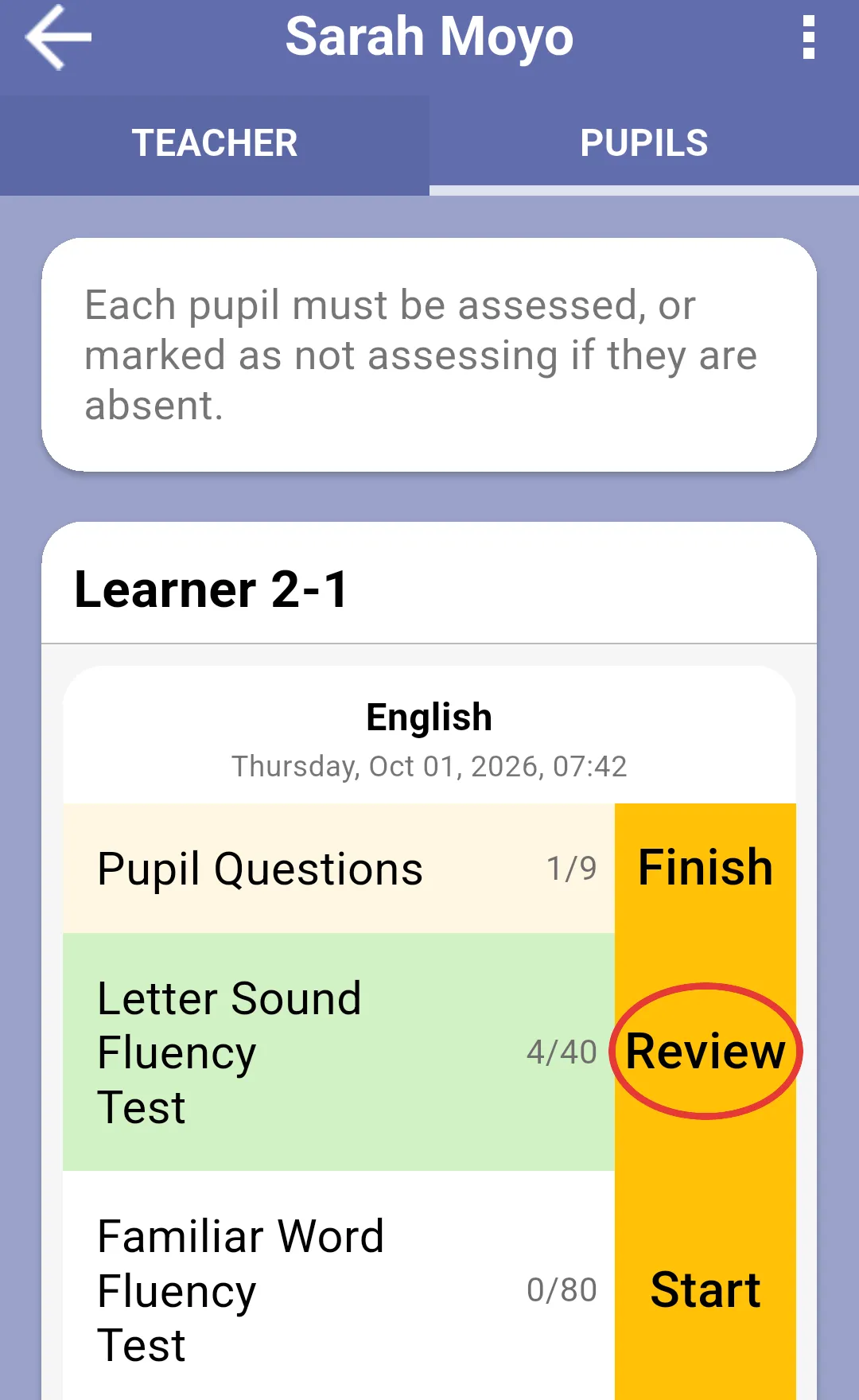
1. Tap Review on the section
Section titled “1. Tap Review on the section”From the pupil assessment, tap the Review button on the section you want to delete. The button is on the right of the section row. A section that was started but not finished reopens the test when you tap its button: use the back arrow and CANCEL TEST there to discard it.
2. Open the section menu
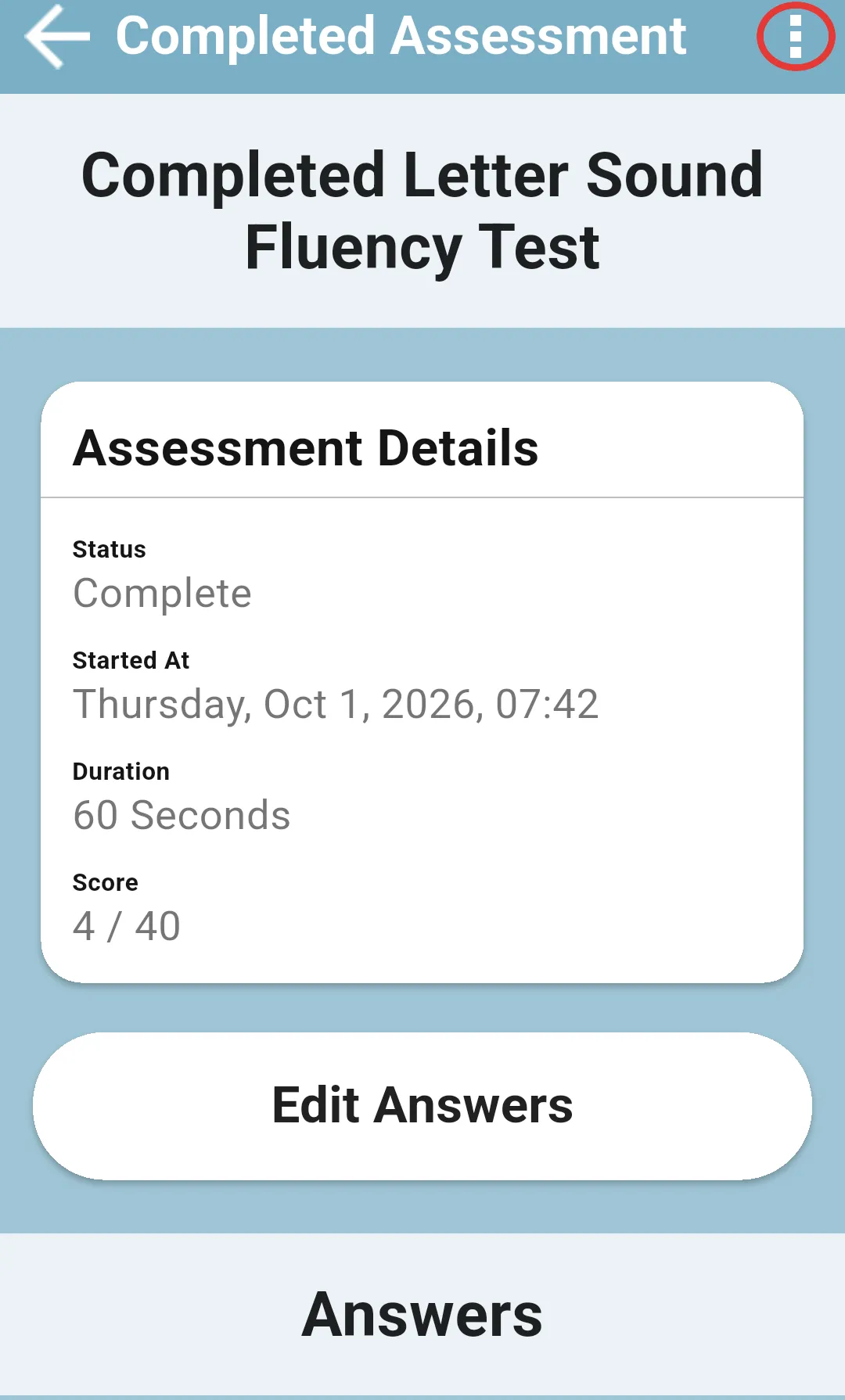
Section titled “2. Open the section menu”The section opens in review mode. Tap the three-dot menu in the top right of the screen.
3. Tap Delete this section
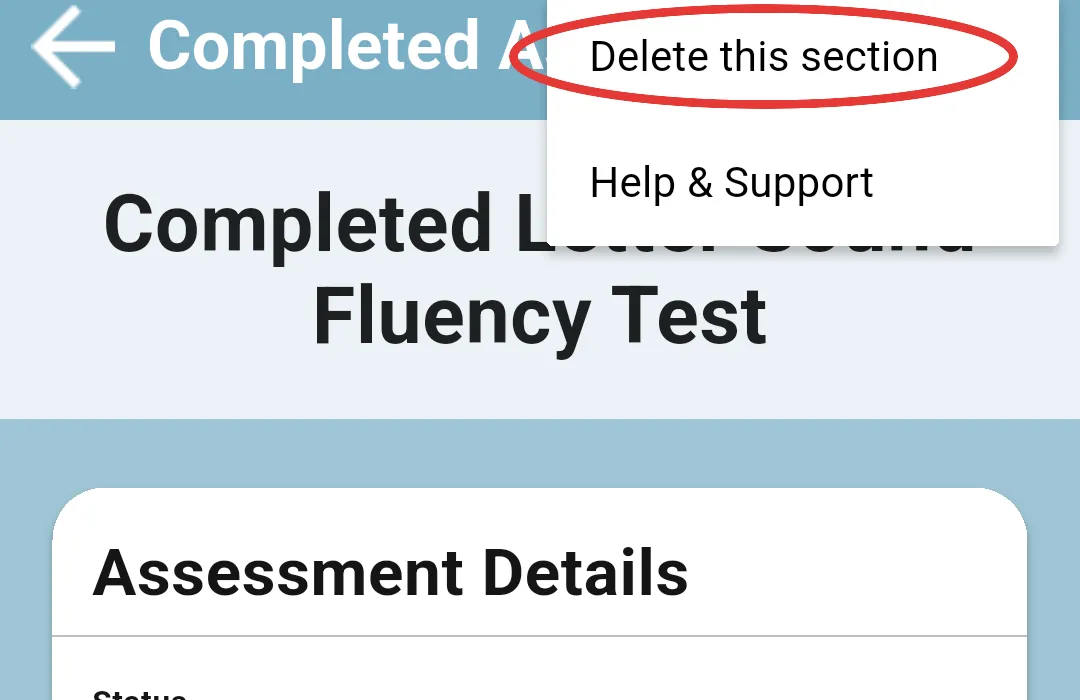
Section titled “3. Tap Delete this section”The menu has Delete this section and Help & Support. Tap Delete this section; the app asks Confirm Delete: Do you really want to delete this section? Tap DELETE to remove the section, or CANCEL DELETION to keep it. The section row goes back to a fresh Start button on the pupil assessment, so the pupil can run it again from scratch.
Next: Paper vs in-app sections