
Creating a report
Once an evaluation has been completed, you can generate a PDF report from it. The Assessment Report contains:
- The school, the evaluated teacher, the date of the round and who carried it out.
- The Class and the Form used.
- Teacher Answers: the teacher questions of the round, with the evaluated teacher’s answers.
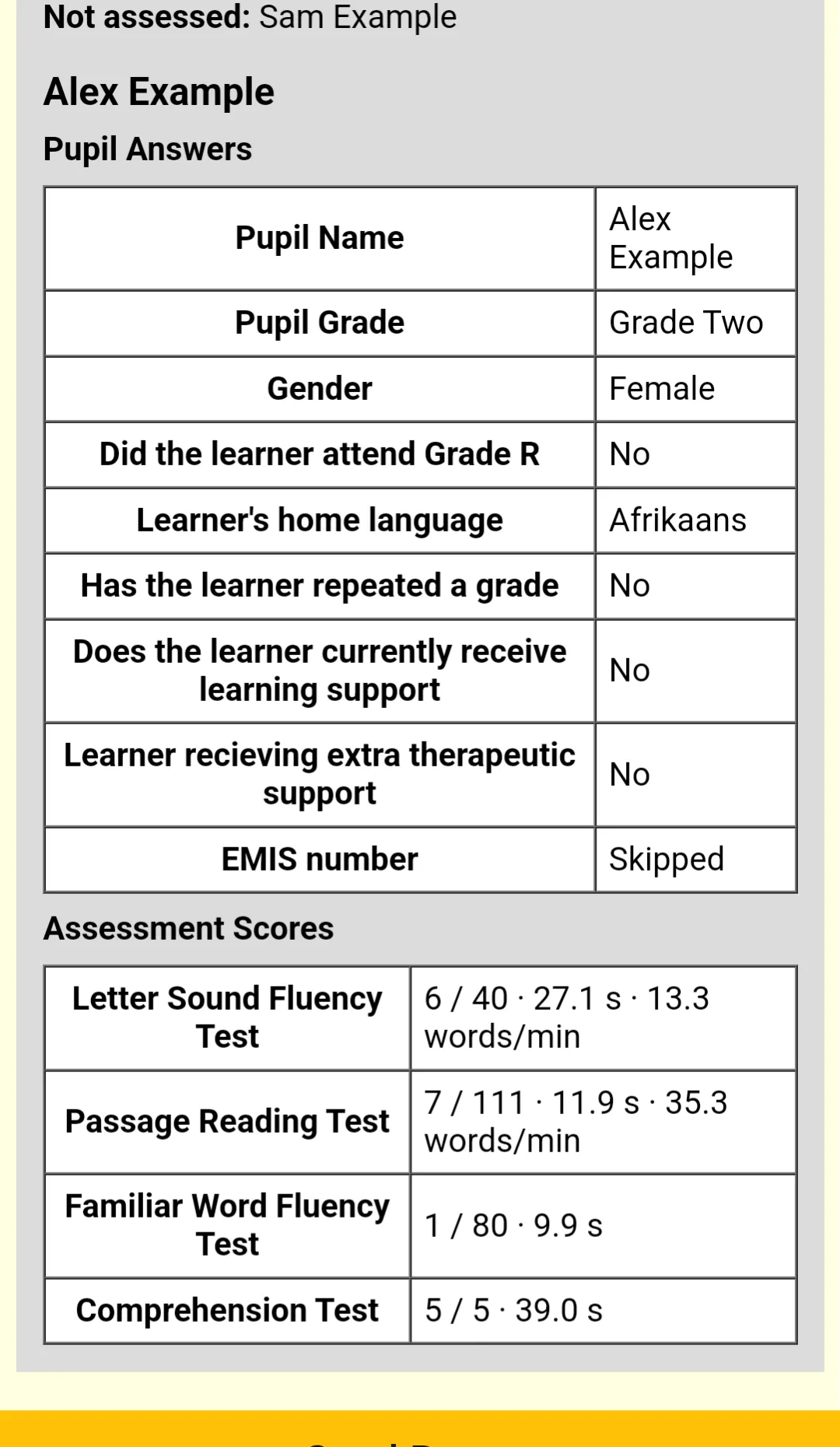
- Not assessed: the pupils marked Not Assessing.
- For each assessed pupil, their Pupil Answers and their Assessment Scores: the correct answers out of the total for each section, the time taken and, for fluency sections, the correct answers per minute.
1. Open the past evaluation
Section titled “1. Open the past evaluation”From the school home, scroll down to Past Assessments (see Past assessments) and tap the one you want a report for.
2. Scroll to the bottom and tap Create Report
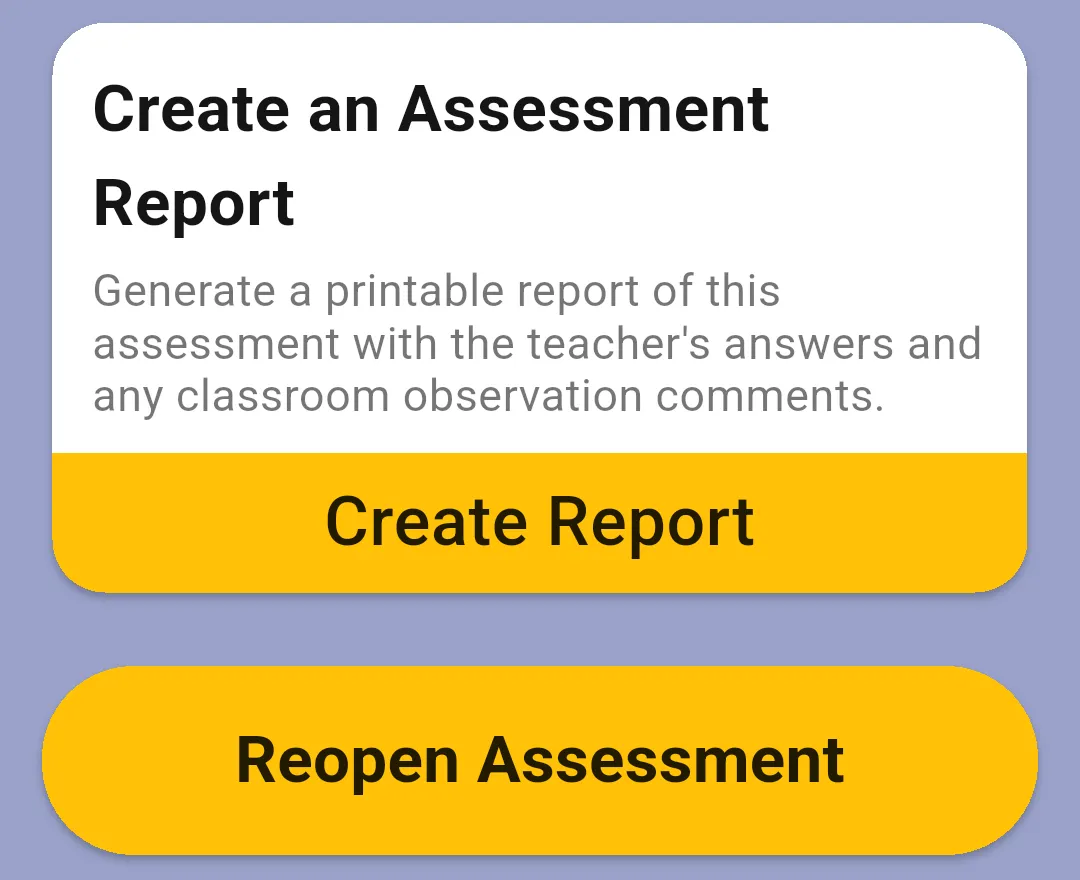
Section titled “2. Scroll to the bottom and tap Create Report”On the ASSESSMENT tab of the past assessment, scroll down to the Create an Assessment Report card and tap Create Report. The app builds the report and shows it on the Report Preview screen, where you can scroll through it.
3. Send the report
Section titled “3. Send the report”Tap Send Report at the bottom of the preview. Your phone’s share menu opens with the PDF, named after the teacher and the date (it ends in Assessment Report.pdf). Choose how to send or save it, for example by email, to Drive or to a printer.
Older forms with classroom observation questions also add their advice and observation comments to the report.
Next: TEACHERS tab (head teacher only).