
Account Details
Use this section to check your account details (name, role, email, app version, account ID) and to log out when you’re done.
Viewing your details
Section titled “Viewing your details”1. Open the home menu
Section titled “1. Open the home menu”From the school home screen, tap the three-dot menu in the top right corner.
2. Tap My Profile
Section titled “2. Tap My Profile”My Profile shows your Name, Email, Phone (when your account has one), Role, School and account Id. It is read-only; ask the person who set up your account if something is wrong.
3. Tap App Details for the app version
Section titled “3. Tap App Details for the app version”App Details opens a small card with the installed app Version, the Environment and the Server the app uses. Useful when you need to report an issue.
App Details is read-only. To update the app version, install the latest version from the Play Store or the Apple Store.
Resetting your password
Section titled “Resetting your password”On My Profile, tap Reset password. The app shows We will send a link to set a new password to your email address; tap Send me a link, then open the email Universal Learning Portal: choose a new password and choose your new password. After you choose it, sign in to the app again with the new password. The link travels by email, so an account without an email address cannot reset its password from the app: ask the person who set up your account.
Interface language
Section titled “Interface language”Open Settings and choose English, Afrikaans or isiXhosa under Language. Leave Environment as it is unless support asks you to change it: it decides which server the app signs in to. Settings is also available in the three-dot menu on Tutorials, before onboarding is complete. Returning to the tutorials preserves your progress. This changes interface text, not the language of an assigned assessment.
See Tutorials and your certificate for the practice steps and certificate download.
Logging out
Section titled “Logging out”Normal Logout clears local account data. Sync first so your work is available from the server when you sign in again.
If unsynced work remains, the app shows Unsynced Data and offers:
- Cancel: stay signed in and keep working.
- Sync now: try to upload the work before logging out. A successful sync lets logout continue. If the network sync fails, the app keeps you signed in so you can retry.
- Log out anyway: leave without uploading; unsynced changes in normal local app storage are lost.
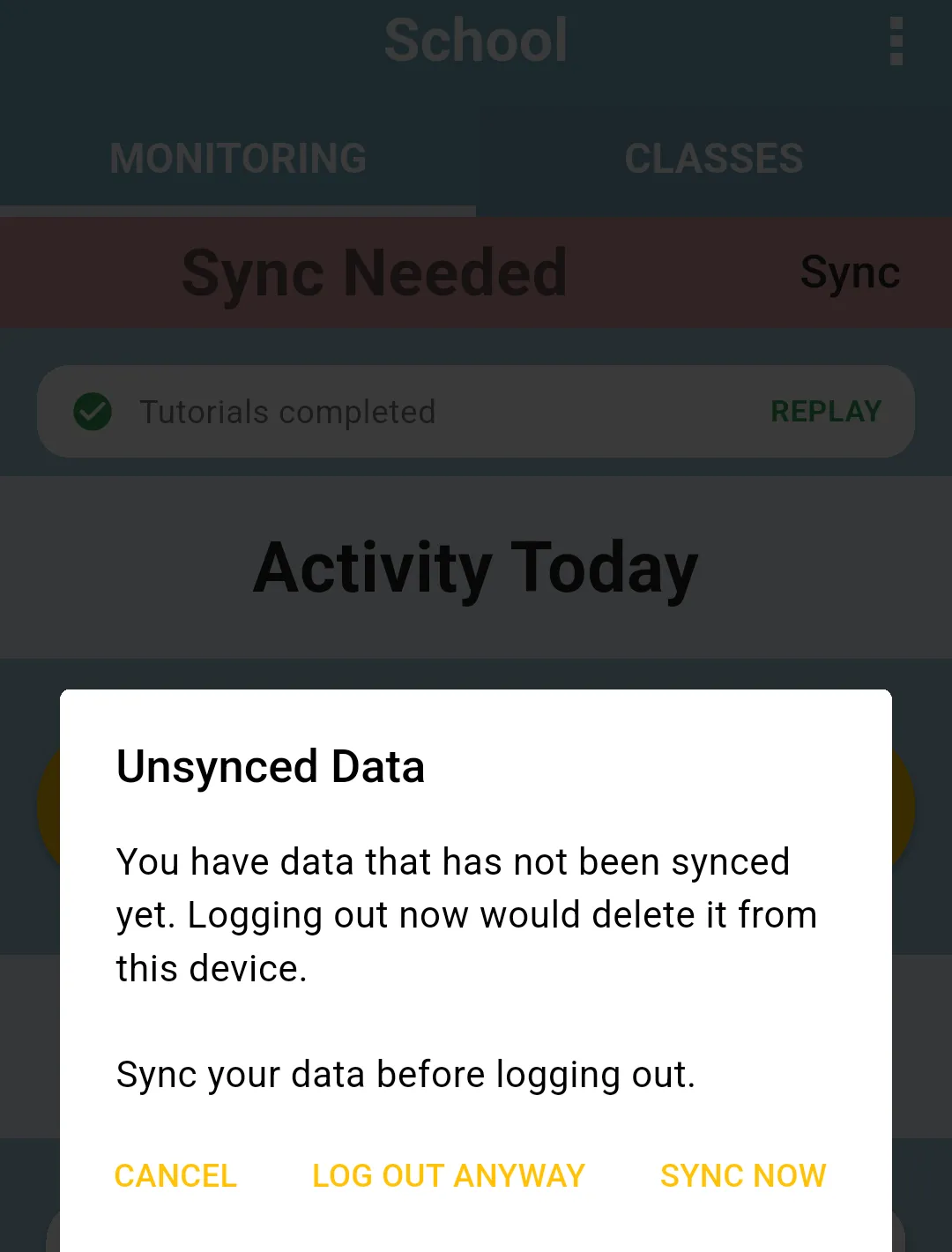
Do not use logout or uninstalling as a first step when sync fails. See Sync & Data and backups and error reports.
Signing in after a password change
Section titled “Signing in after a password change”If the app tells you that your password has changed, it ends the old session while preserving pending work. Sign back in as the same person with the updated password, then sync. This recovery flow is different from choosing normal Log Out. Keep the app installed and contact support if you cannot sign back in.