Your home screen
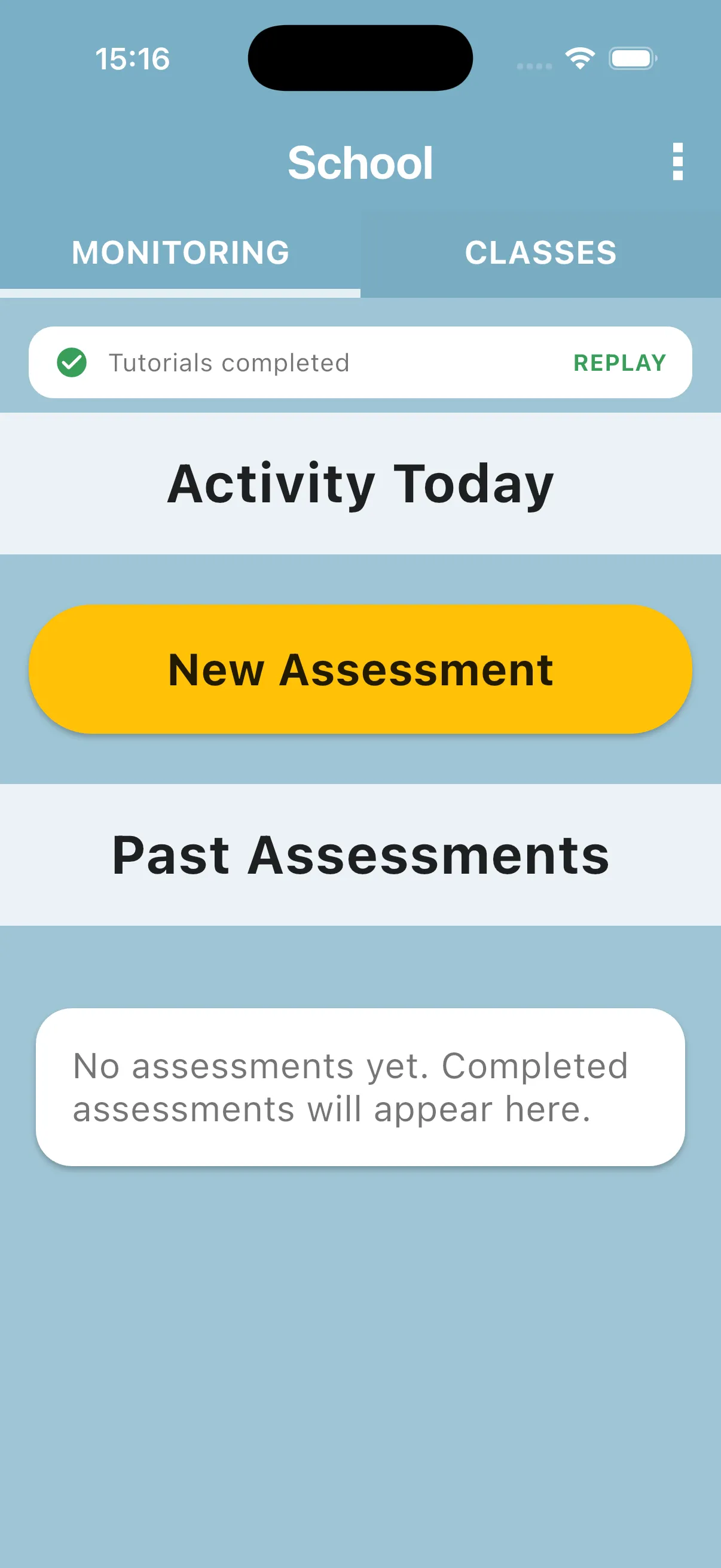
After you log in and complete any required tutorials, you land on the School screen. This is your home in Universal Learning Portal.
The screen has two tabs (MONITORING and CLASSES) if you are a regular teacher, or three tabs (MONITORING, TEACHERS, CLASSES) if you are the head teacher. This page covers the regular teacher view. If you are the head teacher of your school, see Your home screen (Head Teacher) for what changes.
Tutorials
Section titled “Tutorials”Use the tutorial card to reopen guided practice or download your completion certificate. Once both tutorials are complete, it shows Tutorials completed with REPLAY at the top of the MONITORING tab; tap it to open the Tutorials screen. The tutorial guide explains language settings, the practice sequence and saving the PDF.
Monitoring tab
Section titled “Monitoring tab”Shows your tutorials and assessment rounds.
What you’ll see:
- A Sync Needed banner when changes are waiting to upload.
- Sync on the banner or in the menu: uploads pending work and downloads updates.
- Activity Today: today’s assessment rounds that have been started but not yet completed. Once you mark one as completed, it moves to Past Assessments.
- New Assessment: start a new assessment round.
- Past Assessments: completed rounds and older unfinished rounds; scroll down to see them.
Classes tab
Section titled “Classes tab”Shows the classes assigned to your school.
What you’ll see:
- A list of classes, each with its pupil count.
- New Class: create a new class.
Tap on any class to view its pupils, add new ones, or edit the class.
Top right menu
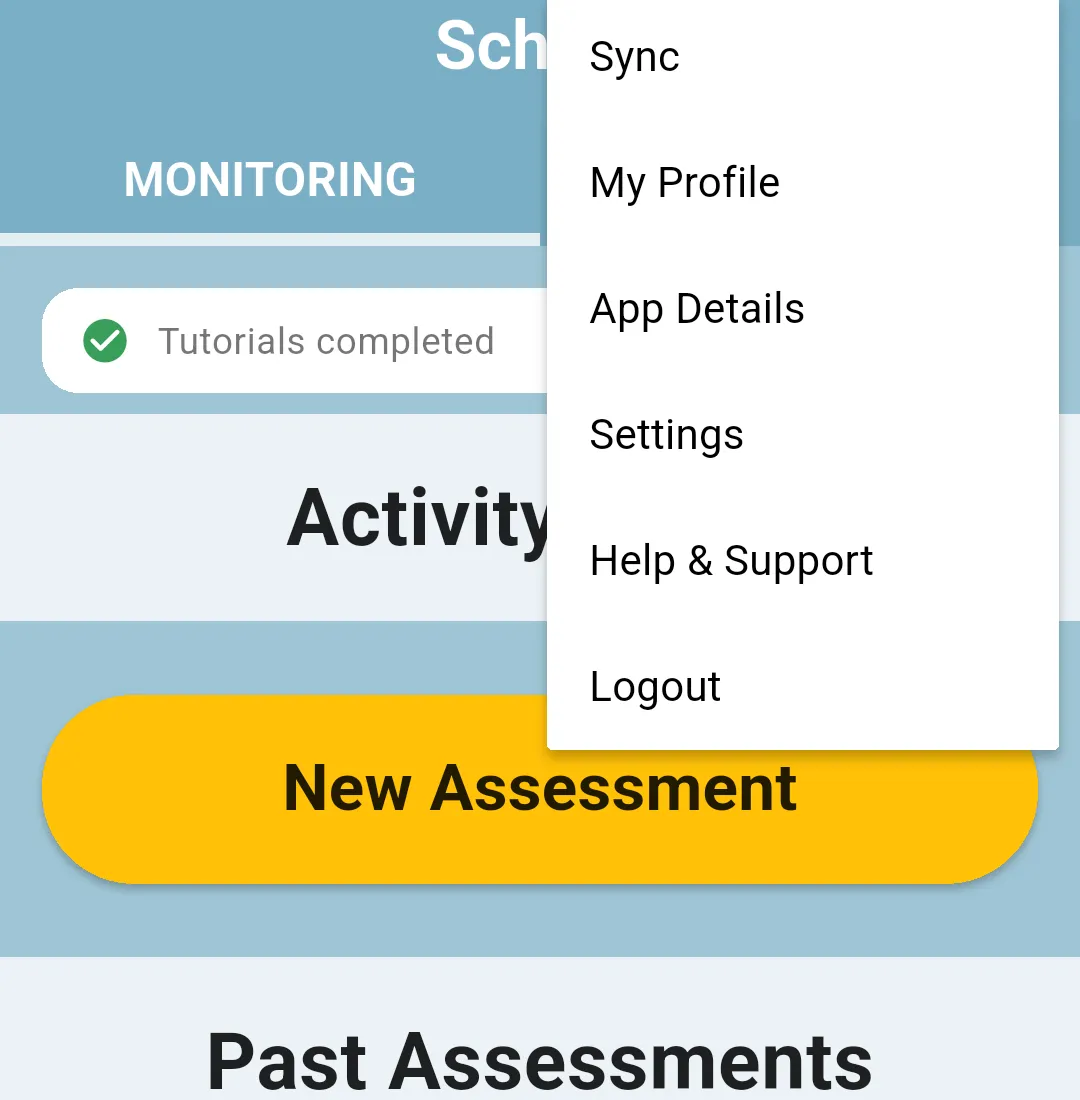
Section titled “Top right menu”Tap the three dots in the top right corner to open the menu. It has:
- Sync: pulls the latest data from the server and pushes any pending work.
- My Profile: view your teacher profile.
- App Details: opens an info card with the app version, the environment and the server URL. Useful when you need to report an issue.
- Settings: choose interface language and find backup and error-report controls.
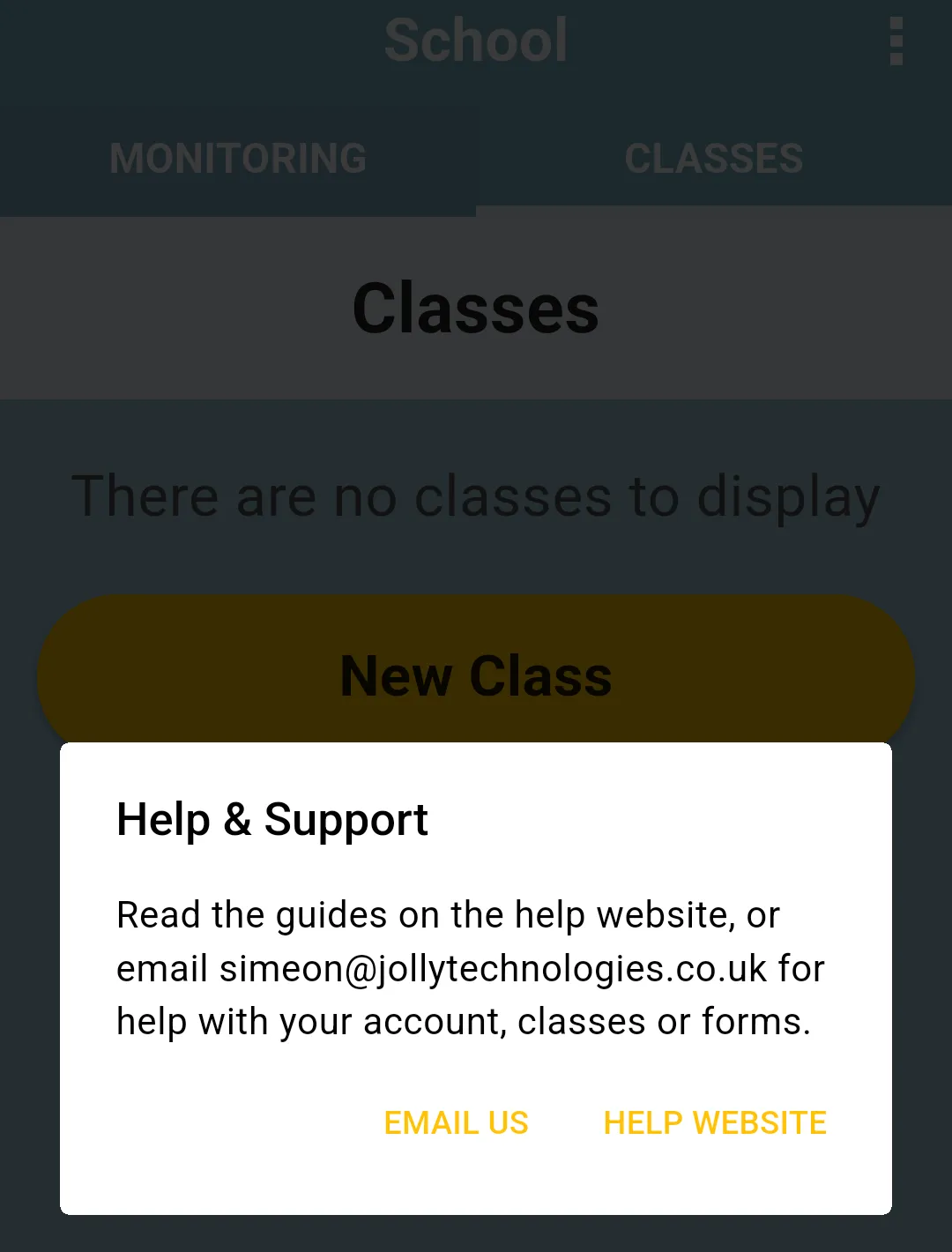
- Help & Support: choose between HELP WEBSITE, which opens these guides, and EMAIL US, which starts an email to simeon@jollytechnologies.co.uk for help with your account, classes or forms.
- Logout: signs you out and clears normal local account data. If work is unsynced, choose Cancel, Sync now or Log out anyway. See logging out safely.
Teachers cannot rename the school from the app.
Next: Your home screen (Head Teacher)