
Running a pupil assessment
Run each section from its Start button on the pupil assessment screen. Read the section’s instructions and scoring guidance before beginning.
1. Choose how the assessment is performed
Section titled “1. Choose how the assessment is performed”The app asks How is this assessment performed? It offers two or three of these options, depending on the section:
- App shown to pupil: the pupil reads from the device.
- Pupil reads from the paper sheet, you score here in the app: the pupil reads the printed material while you mark responses on the device.
- Enter results of an assessment already done on paper: enter responses from an assessment already completed on paper. No live timer runs; where required, enter the recorded duration when finishing.
Sections that must be read from the paper sheet do not offer App shown to pupil.
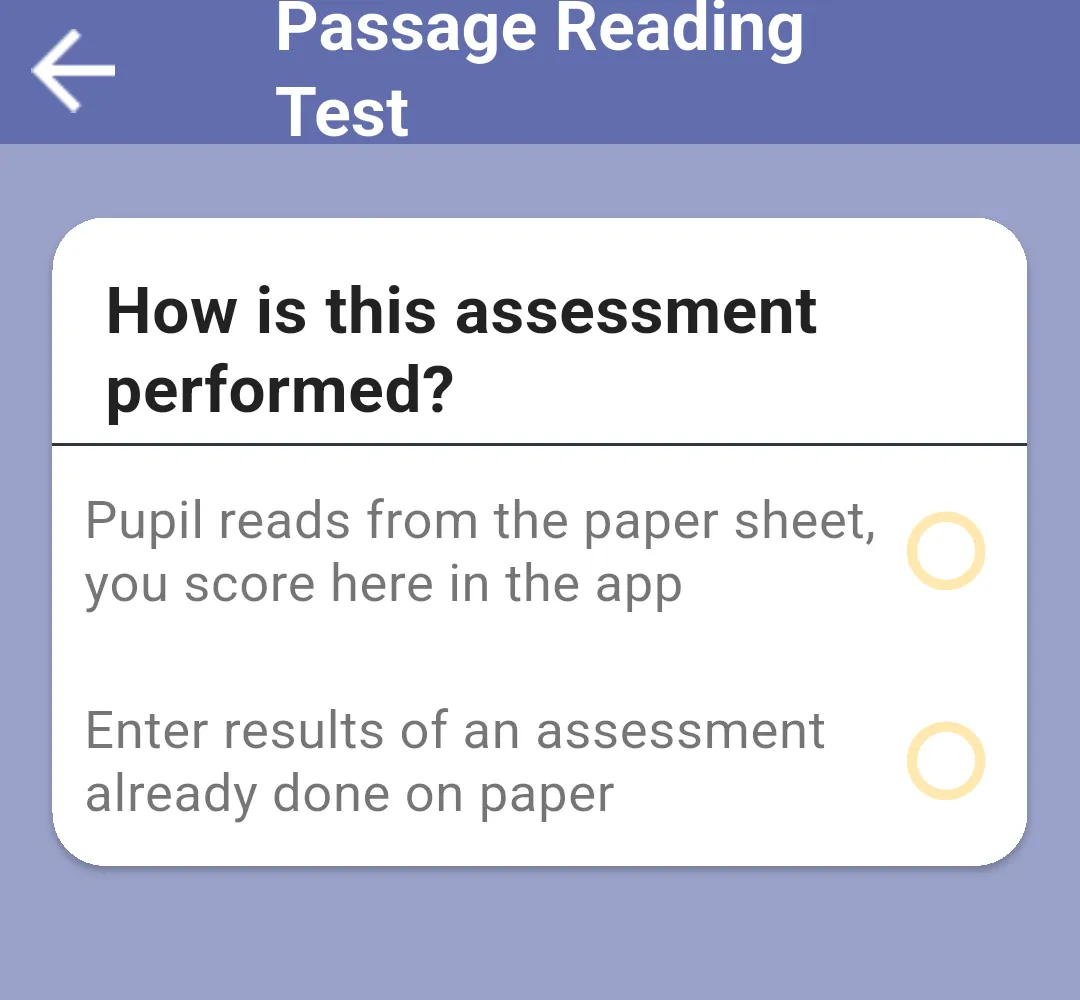
The definition determines whether a live section uses individual words, groups of five or whole sentences. See Paper vs in-app sections for the layouts.
2. Read the instructions and start
Section titled “2. Read the instructions and start”Read the script in the white cards to the pupil. Use View Scoring Guidance to check what counts as correct, then tap Start Assessment. Some sections also offer Skip Section if you are not conducting that assessment.
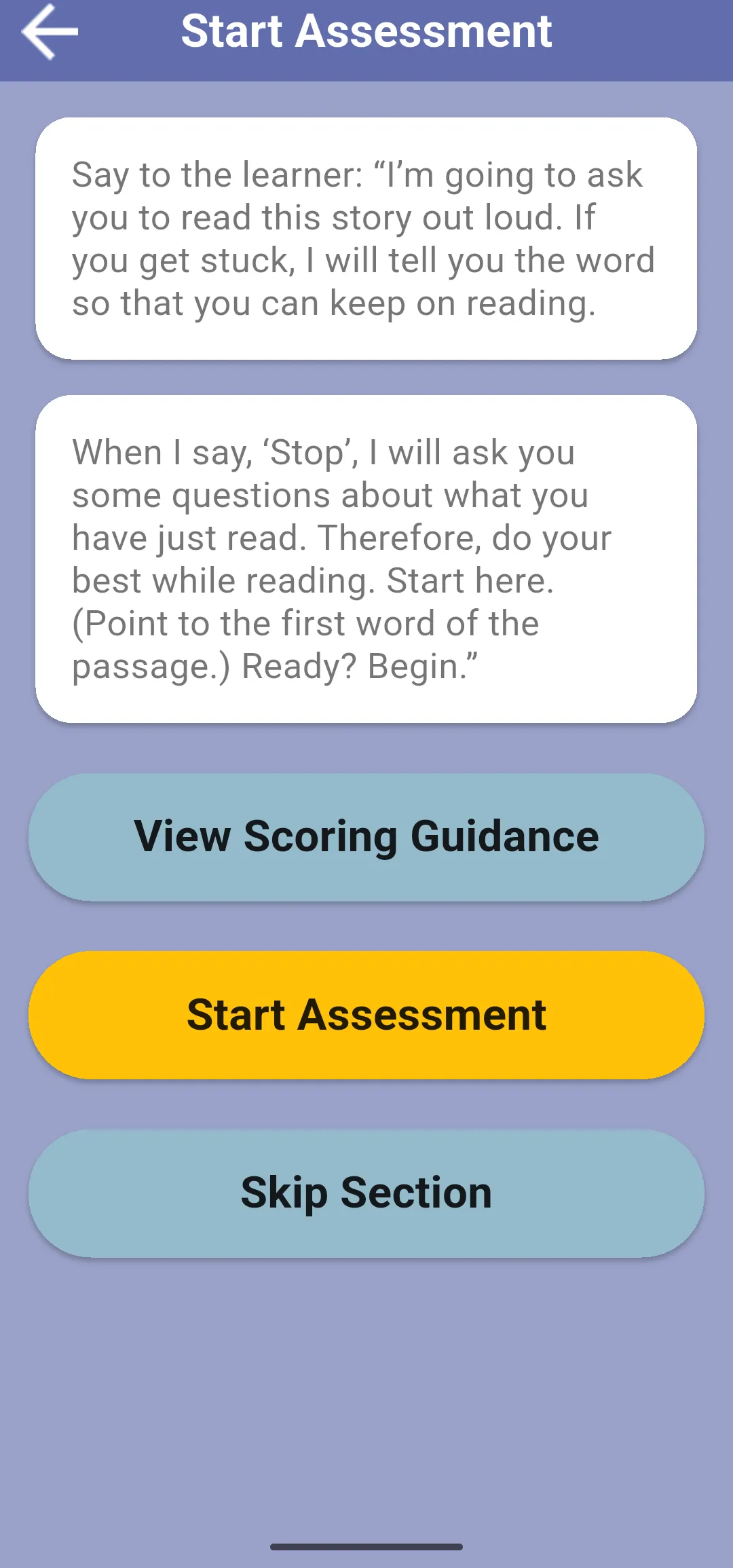
For a countdown section, tap Tap to start when the pupil is ready. The short preparation countdown (3, 2, 1) finishes with GO!; the assessment timer starts then. A timed section without a time limit uses a stopwatch. Untimed sections have no assessment timer.
3. Mark the responses
Section titled “3. Mark the responses”Word-by-word sections
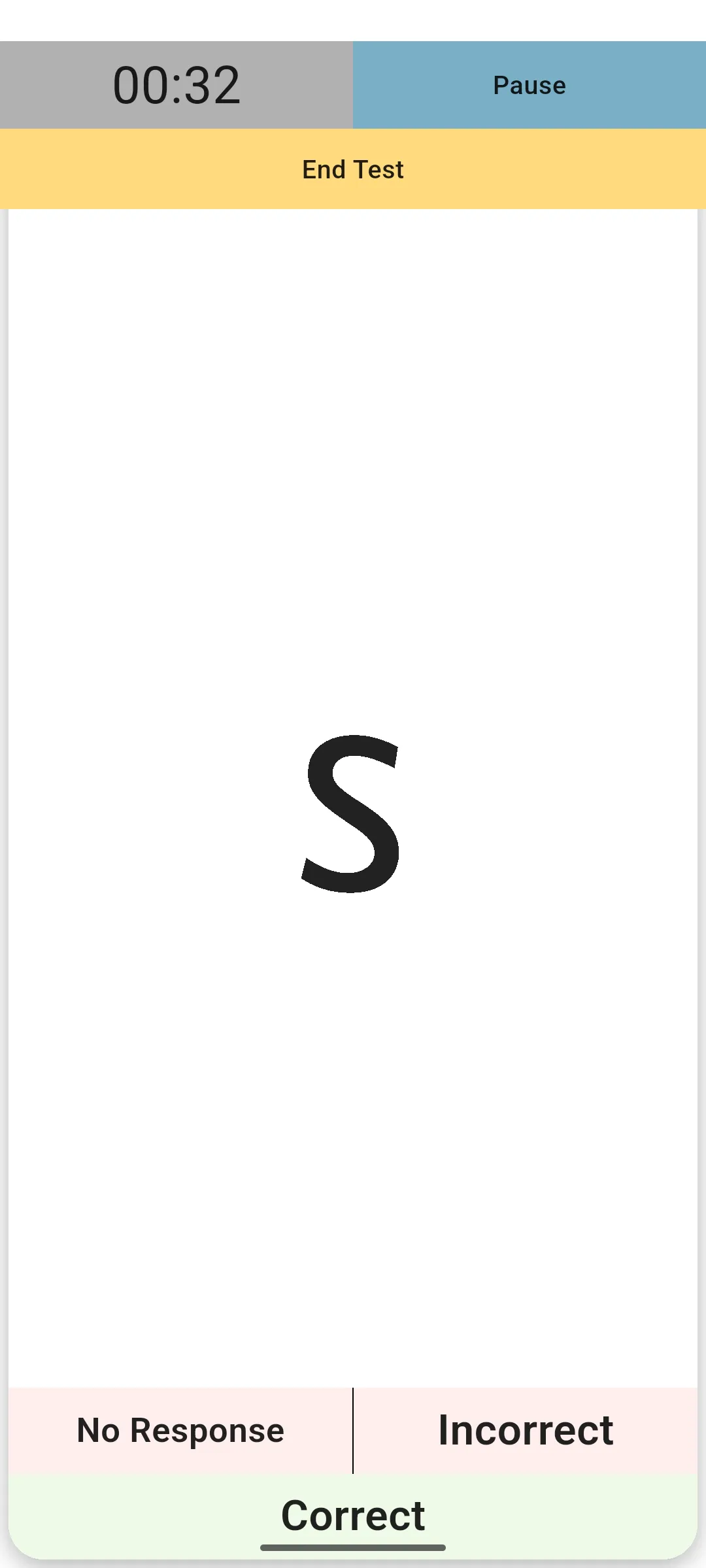
Section titled “Word-by-word sections”Use Correct, Incorrect or No Response for each item. The app stimulus shows one item at a time; the paper stimulus uses a scrolling list of items.
Sentence-by-sentence sections
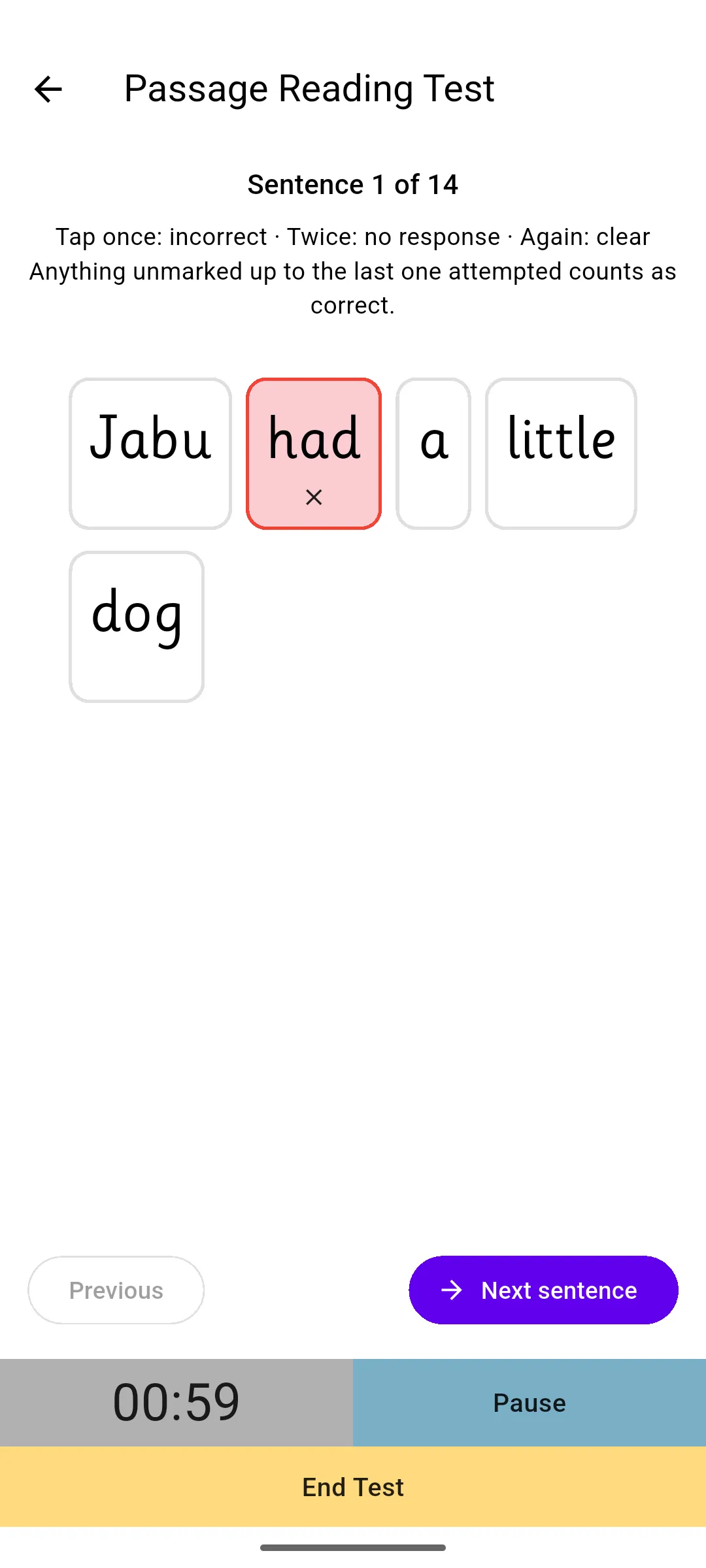
Section titled “Sentence-by-sentence sections”The whole current sentence appears together, under a counter such as Sentence 1 of 14. Mark only the words that need a different response:
- Tap a word once to mark it incorrect.
- Tap it again to mark no response.
- Tap it a third time to clear the mark.
- Use Next sentence to move on, or Previous to revisit a sentence.
- Unmarked words up to and including the last attempted word count as correct. Words after that point are recorded as Not Attempted.
Five at a time sections
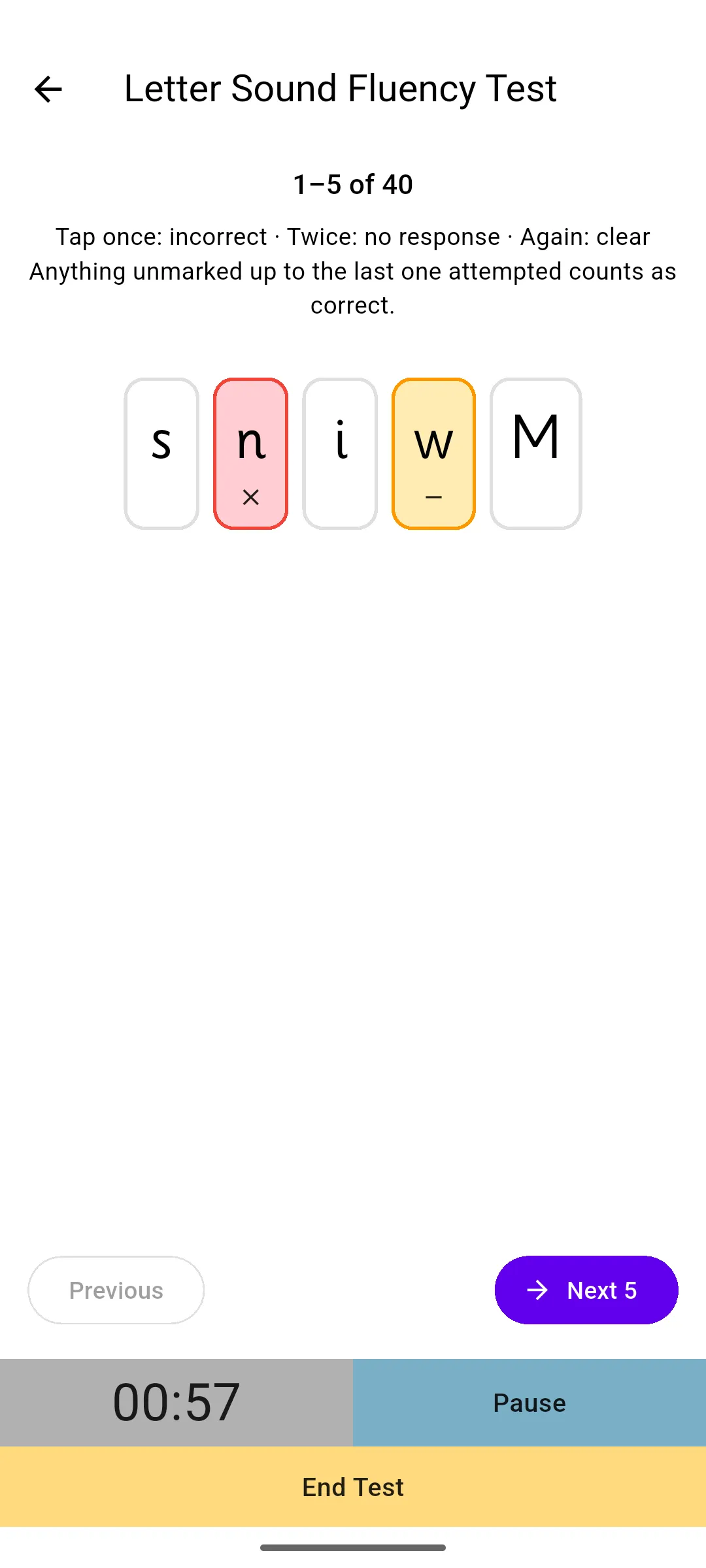
Section titled “Five at a time sections”A timed section configured for five at a time shows five letters or words together, under a counter such as 1–5 of 40. The app reminds you: Tap once: incorrect · Twice: no response · Again: clear, and Anything unmarked up to the last one attempted counts as correct.
Tap Next 5 to advance or Previous to revisit a group. The timer continues across groups. The final group may contain fewer than five items; on it, the button becomes Finish. This layout also works on the assessor’s screen while the pupil reads the required paper list.
4. Pause or finish
Section titled “4. Pause or finish”Pause stops the assessment clock; Continue resumes it. Paused time is excluded from the recorded duration.
If you leave the app during a timed section (for example to answer a call), the assessment pauses by itself and shows Assessment paused; the time outside the app is not counted. Tap Continue when you are back. If the app closes during a test, open the same section again from the pupil’s card: after the usual option and instruction screens, the test reopens paused with the answers and the time saved so far.
The back arrow during a test asks Test Incomplete: Do you wish to cancel the test? Tap CONTINUE TEST to go back to it, or CANCEL TEST to stop it.
The assessment timer is silent: there are no warning or end beeps. It stops automatically at the configured limit. A section with a 60-second limit records 60 seconds on expiry. End Test finishes early where the definition allows it. If early finishing is not allowed, follow the cancellation prompt instead.
Select the last one read or attempted
Section titled “Select the last one read or attempted”In sentence and five at a time sections, at expiry, early finish or Finish on the final sentence or group, the app asks you to Select the last one read or attempted: anything after it is recorded as not attempted. Tap that letter or word and then Save assessment. Select None attempted, at the end of the list, if the pupil attempted none. The save button stays disabled until you make a selection.
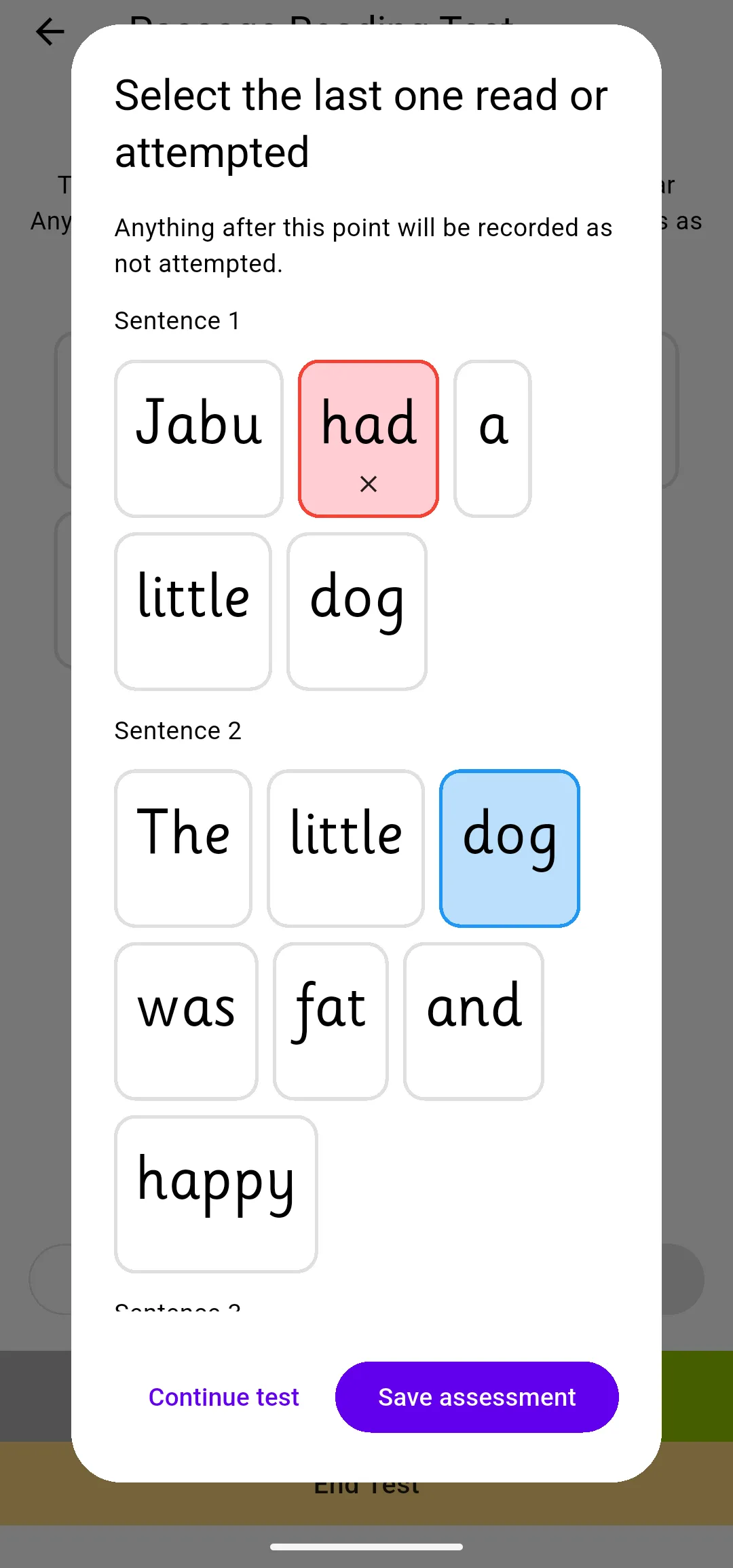
The clock stays stopped while you choose. Continue test is available after an early stop if you need to return; it is unavailable after the time limit has expired.
Other assessment layouts
Section titled “Other assessment layouts”Some sections show a Complete Assessment dialog to review missing answers, the last question attempted or the duration. When entering a paper assessment with a required duration, type the time before confirming. A timed assessment that reaches its limit may go directly to the results.
5. Review the result
Section titled “5. Review the result”The completed assessment shows its duration, score and individual responses. Reading passages and five at a time sections also show Fluency (correct per minute) as a number, including when you reopen a result from history.
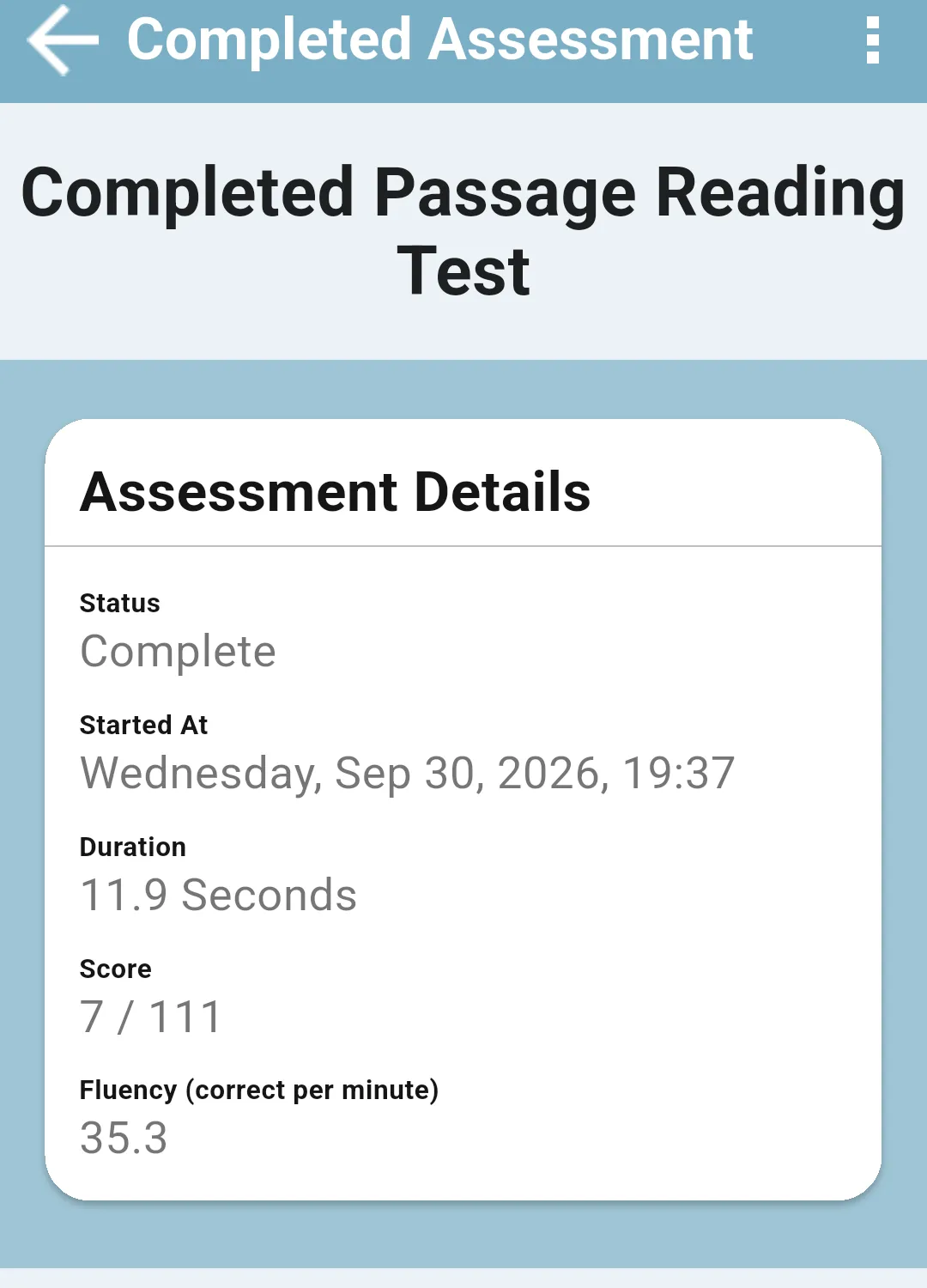
This example was recorded with demo data: 7 correct in 11.9 seconds.
The calculation is correct answers × 60 ÷ elapsed seconds:
| Example | Fluency |
|---|---|
| 2 correct in 20 seconds | 6 |
| 2 correct in 60 seconds | 2 |
| 7 correct in 11.9 seconds | 35.3 |
Incorrect, no-response and not-attempted items do not add to the correct score. Fluency is shown for timed sections presented five at a time or sentence by sentence, and for timed reading passages; a missing or invalid duration shows Unavailable (no valid duration). The result may include one decimal place.
Correct an answer after the test
Section titled “Correct an answer after the test”If you marked an answer by mistake, or the time ran out before you marked the last one, you do not need to redo the section. On the result, tap Edit Answers.
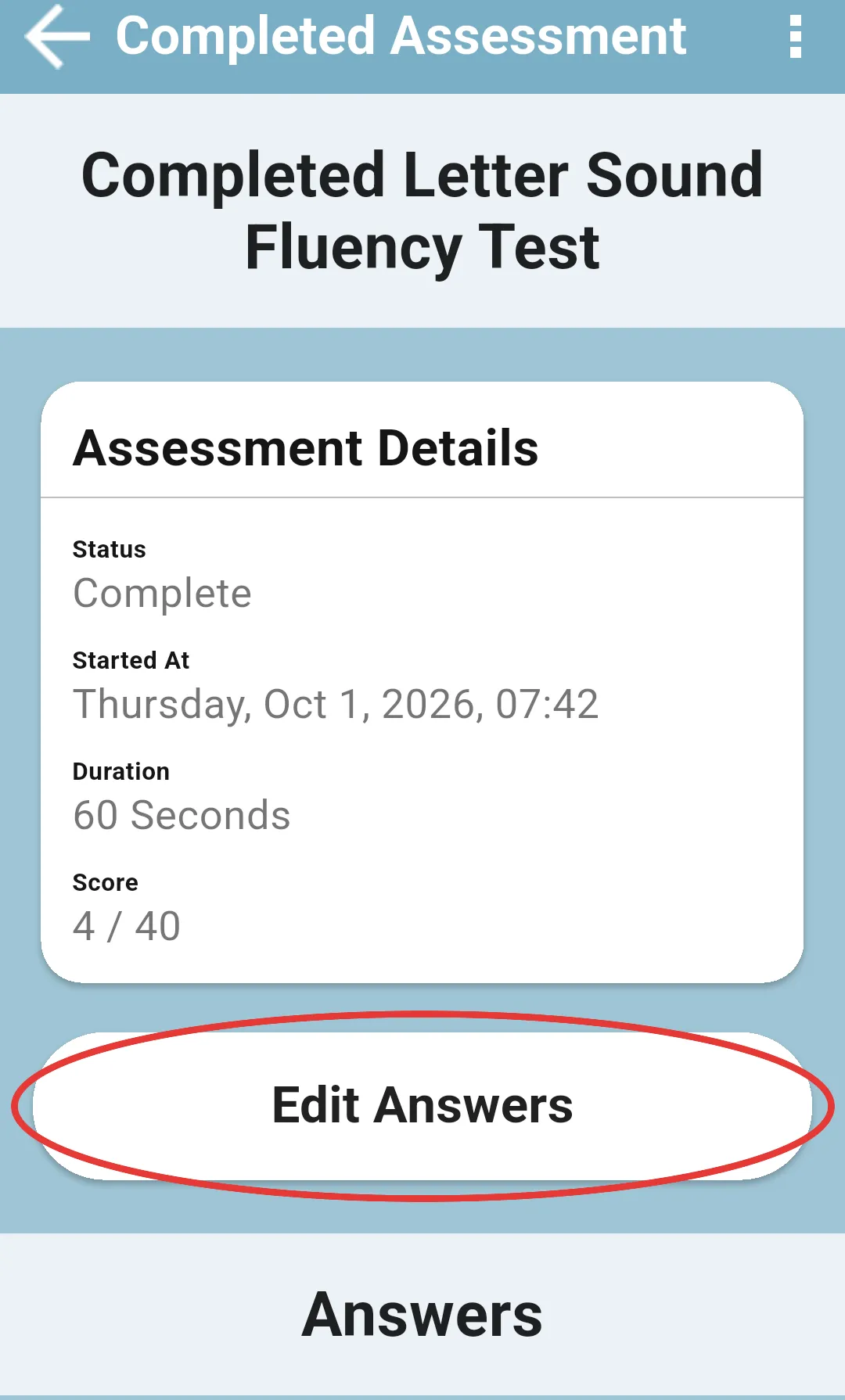
Tap the answer you want to change and choose Correct, Incorrect, No Response or Not Attempted.
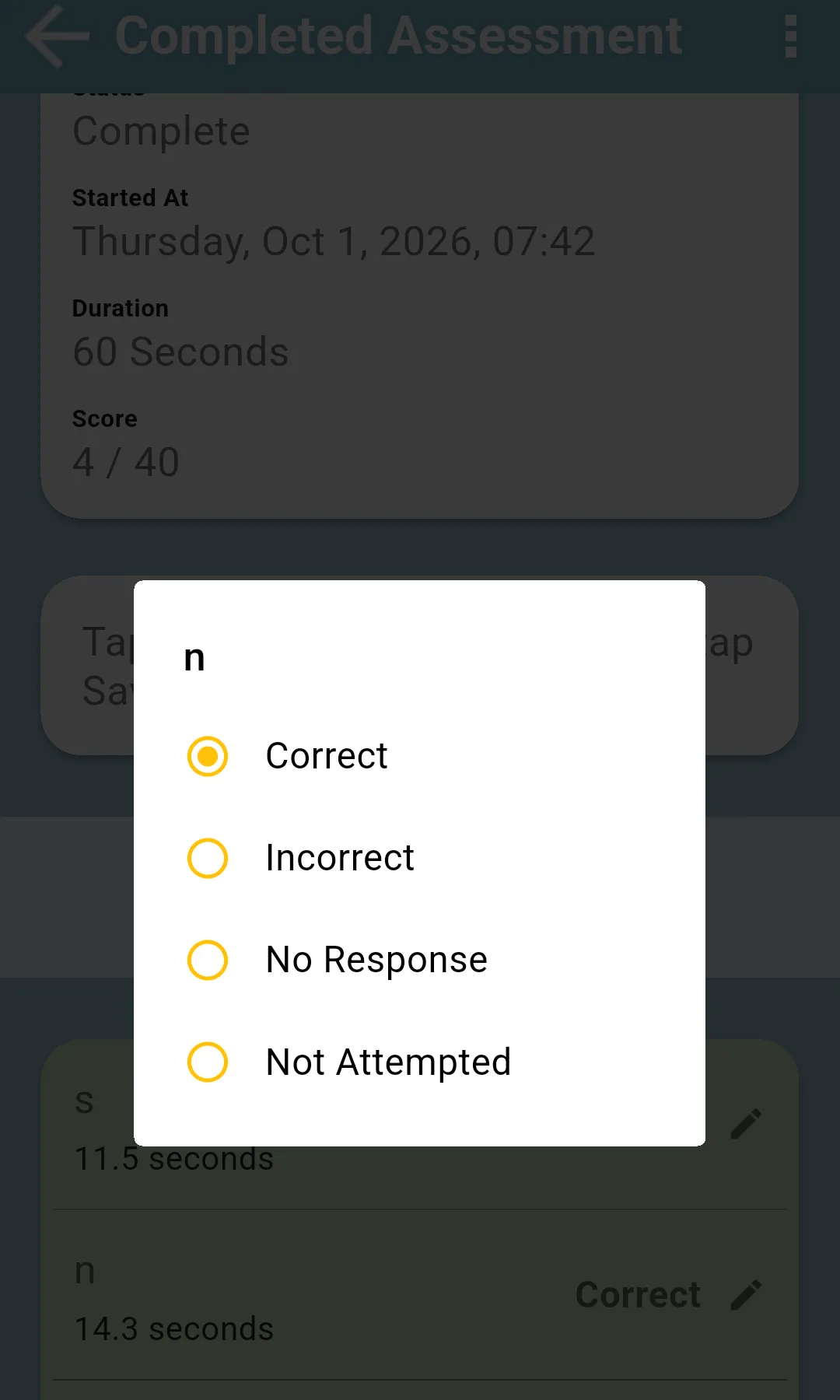
The score, and the fluency where it is shown, change as you go. Tap Save Answers to keep the corrections (the app confirms with Answers updated), or Cancel to leave the answers as they were. If you go back with unsaved corrections, the app asks Discard your changes?; tap KEEP EDITING or DISCARD.
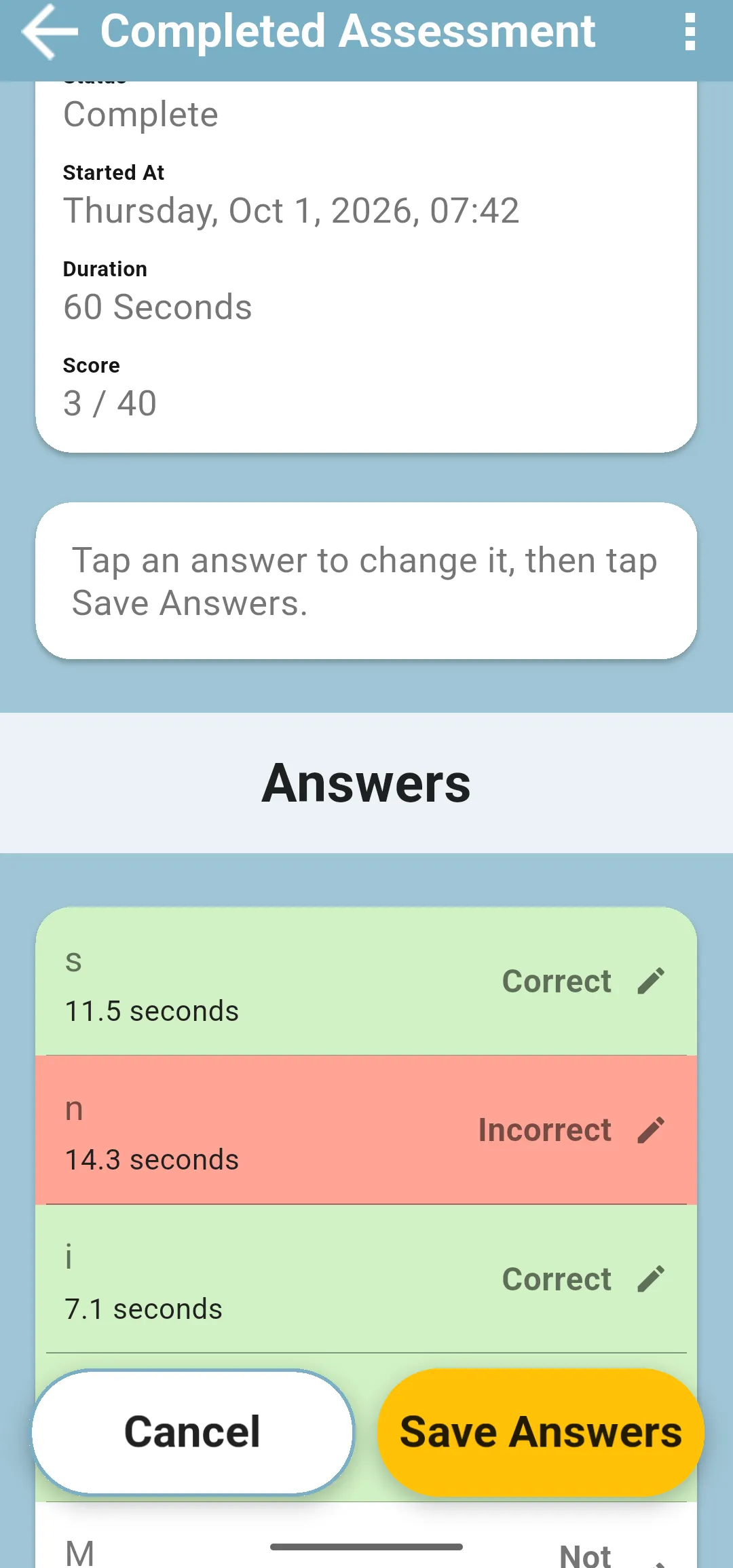
The time recorded for each answer and the duration of the section stay the same. The corrected answers are sent to the server on the next sync.
Edit Answers is offered while the assessment is in editing mode. A finished assessment opened with View Assessment is read-only: choose Edit Assessment, or reopen it, as described in Past assessments.
Next: Deleting a section